Named Queries
Description
The List control supports multiple named queries that can be chosen at runtime. The selector can be a Radio Button, Dropdown, or Checkbox control, and can be placed anywhere in the UX—including inside the List (by wrapping the selector in an Injectible container).
Enable named queries
In List Builder → Data Source, check Has named queries, then click the smart field for Named query definition to configure queries and presentation.
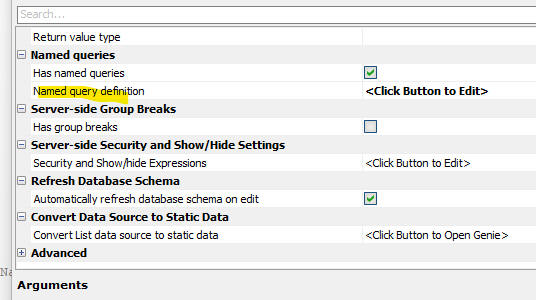
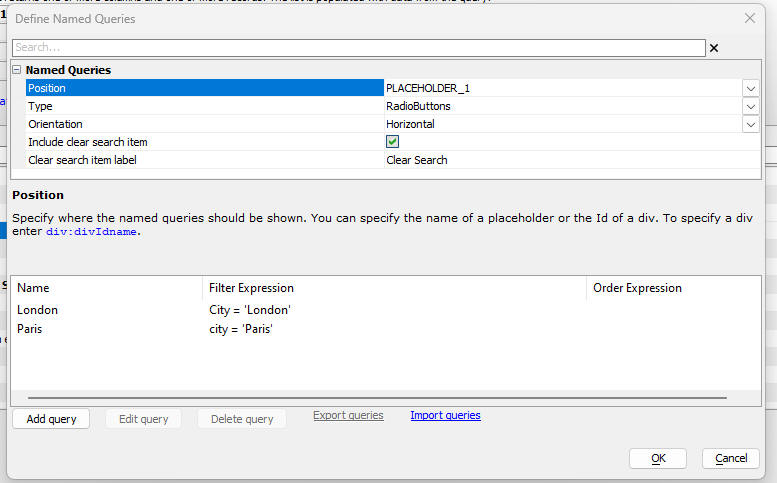
The following properties are of note:
- Position
Name of a Placeholder control, or a div inside static HTML. To target a div use: div:divIdname (e.g. div:div1).
- Type
Radiobutton, Checkbox, or Dropdown. For Checkbox, specify whether multiple conditions are combined with AND or OR. See also Checkbox Control.
- Orientation
When Type is Radiobutton, choose vertical or horizontal layout.
- Include clear search item
Adds an option that clears the current named query.
- Clear search item label
Text for the clear option. Supports language/text dictionary tags.
Define queries
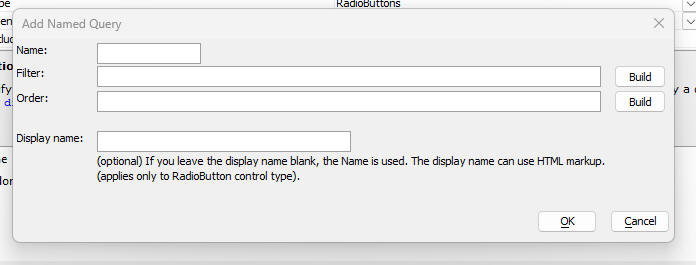
Select Add query to add each Named query and set its filter and order. You can add as many named queries as needed.
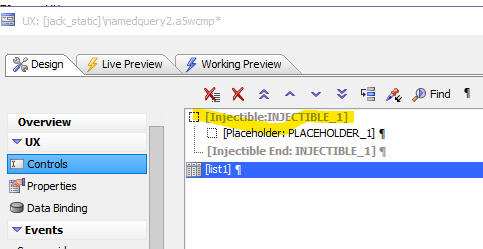
Inject the selector into the List
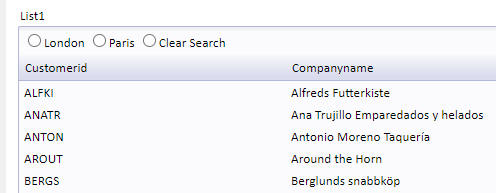
Wrap the selector’s Placeholder in an Injectible container and inject it into the Fixed header or Data header of the List.

List event
When a named query is selected, the onNamedQuerySelected List event fires. A common use is switching the List Layout based on the selection.
JavaScript method
Call {dialog.object}.namedListQuery() to apply a named query programmatically.
{dialog.object}.namedListQuery(listName, queryName)
// OR combine by expression using placeholders in curly braces:
{dialog.object}.namedListQuery(listName, '{london} OR {paris}')
Video (2023-11-21)
See Also